Launching Command Prompt
Table of Contents
Command Prompt is an effective tool for automating and streamlining tasks on Windows.
Windows comes with Command Prompt pre-installed, so you can start using it immediately on your computer.
However, since Windows 11, Command Prompt has disappeared from the Start menu list.
This page shows how to open Command Prompt on Windows 11 and Windows 10. Pick the method that fits your situation from the table below.
| Situation | Method | Steps |
|---|---|---|
| Fastest way | “Run” dialog | Windows + R → cmd → Enter |
| As administrator | Start menu search | Windows → cmd → Ctrl + Shift + Enter |
| In a specific folder | File Explorer address bar | Type cmd in the address bar → Enter |
| Mouse only | “Windows Tools” (Windows 11) | Start menu → “Windows Tools” → “Command Prompt” (Windows 10: “Windows System”) |
| Windows is unresponsive | Task Manager | Ctrl + Shift + Esc → “Run new task” → cmd |
Each method is explained step by step below.
1. Launch from Start Menu
For Windows 11 users, the easiest way to launch Command Prompt is through the Start menu.
Although it has disappeared from the list, the Start menu has a search function that you can use to launch it.
Here is a summary of the process:
- Press the Windows key
- Type
cmdin the displayed Start menu and press Enter - Command Prompt will appear
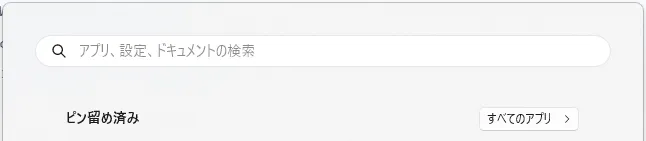
Press the Windows key
Pressing the Windows key displays the Start menu and puts it in a state ready to accept input.
You don’t need to click anywhere special; just proceed to the next step.
Type cmd
Once the Start menu is displayed, type cmd.
cmd is the command to launch Command Prompt, and typing it in the Start menu will display Command Prompt as a candidate.
While it requires more characters, you can also type “Command Prompt” to display it as a candidate.
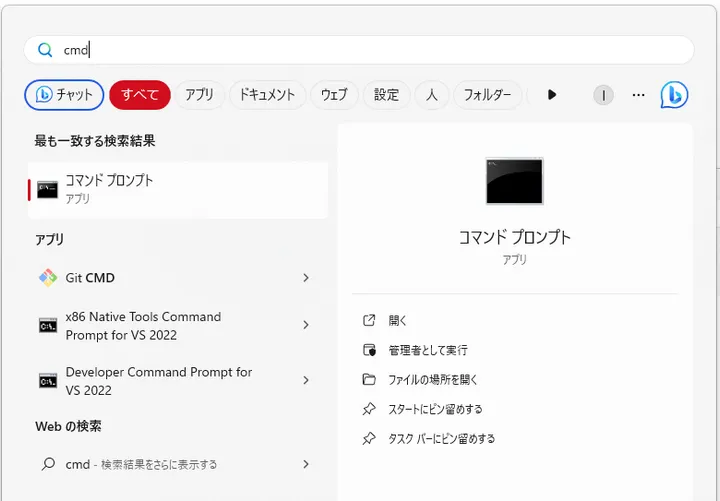
Command Prompt is Displayed
Once Command Prompt appears, the launch is complete.

2. Launch from “Run” Dialog
In Windows, there are various programs pre-installed, and one way to launch these programs using text strings is the “Run” dialog. This method works not just for Command Prompt but for other programs as well.
Here is a summary of the process:
- Press Windows key + R key
- Type
cmdin the displayed “Run” dialog and press Enter - Command Prompt will appear
Press Windows key + R key
Pressing Windows key + R key displays the “Run” dialog.
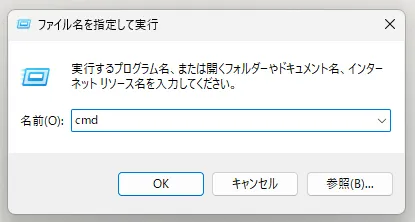
Type cmd
Once the “Run” dialog is displayed, type cmd.
Command Prompt is Displayed
Once Command Prompt appears, the launch is complete.

中小企業経営者のためのRPA入門 RPA導入を成功させる方法

60分でわかる! AIエージェント 超入門

コマンドラインの黒い画面が怖いんです。

知識・才能ゼロでもらく~に月10万円稼ぐ! よくわかるAI副業超入門
3. Launch from “Windows Tools”
In Windows 11, Command Prompt no longer appears in the Start menu.
So where is Command Prompt now?
With Windows 11, an app called “Windows Tools” was added to the Start menu.
It displays a list of apps that come standard with Windows, and Command Prompt has been grouped there.
Launch “Windows Tools”
To launch “Windows Tools”, follow these steps:
- Press the Windows key
- Type
Windows Toolsin the displayed Start menu and press Enter - “Windows Tools” will be displayed
- Click “Command Prompt” from the list in “Windows Tools”
- Command Prompt will appear
First, similar to the first launch method, press the Windows key and type Windows Tools.

Launch “Command Prompt” from “Windows Tools”
Once “Windows Tools” is displayed, click “Command Prompt” from the list.

Command Prompt is Displayed
Once Command Prompt appears, the launch is complete.
4. Launch from the File Explorer Address Bar (in the Current Folder)
To open Command Prompt with a specific folder as the working location, use the File Explorer address bar.
- Open the target folder in File Explorer
- Click the address bar (where the path is displayed)
- Replace the path with
cmdand press Enter - Command Prompt opens with that folder as the current directory
This does not work in virtual locations such as “This PC” or “Quick access”.
This saves you from navigating with cd, which is handy when testing a batch file or running dir or xcopy in that folder.
5. Launch from Task Manager
Even when File Explorer or the Start menu does not respond, Task Manager can often still start Command Prompt.
- Press Ctrl + Shift + Esc to open Task Manager
- Choose “Run new task” (under the “File” menu, or the button at the top in Windows 11)
- Type
cmdand click “OK”
Check “Create this task with administrative privileges” to start it as administrator.
Note: Launching with Administrator Rights
If you need to run operations that require administrator rights, type cmd in the Start menu and press Ctrl + Shift + Enter to launch it as administrator. Select “Yes” when the confirmation dialog appears.
In recent versions of Windows 11, Command Prompt may open inside a Windows Terminal window depending on the “Default terminal application” setting. The commands work the same way.
In recent versions of Windows 11, you can also launch Windows Terminal from “Terminal” in the menu shown by Windows + X. By default it opens a PowerShell tab, so to use Command Prompt, choose “Command Prompt” from the dropdown next to the ”+” button in the tab bar.